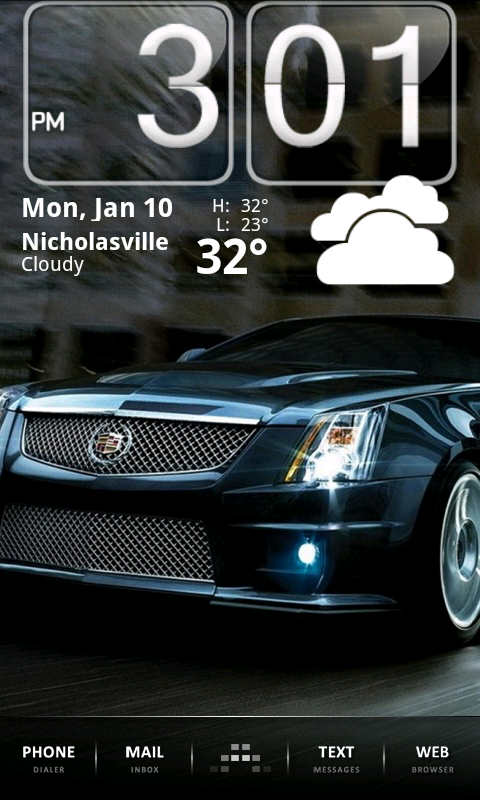

The icons are just shortcuts. Open your app drawer, tap and hold on the app you want a shortcut to, then drag it to the spot you want on the desktop. To move it, long-press on it again. To get rid of it, drag it to the app drawer button (which turns into a garbage can icon when you're moving a shortcut).tigersharkdude wrote:Also how do I make my home screen look like this? as well as doing the buttons like that in the red "box"

Launcherpro, ADW, Zeam, etc. are Home replacements. The stock/default desktop environment of Android is called "Home." It has changed a lot as Android has grown...the 2.0 and earlier home screen is the one in your pic above. I've always found it ugly and wasteful, since there's no icon dock at the bottom and the grey app drawer button looks about as nice as a rusty hole in the side of your favorite car. 2.1 and up improved the stock Home features a fair bit, but still not enough to compete with Home replacements.
Most Home replacements add a dockbar and more shortcut spots at the bottom (beside the app drawer button) and also allow you to have more "screens" (pages of desktop to place shortcuts and widgets on), in addition to adding a lot of other new options, too.
When you install a Home replacement, the first time you hit the home button, you should be prompted to choose which app to use to perform that action (similar to what happens if you have multiple browsers installed, or multiple apps capable of viewing images). It's just like Windows' default program setting. The Home replacement takes over and Home no longer gets used.
Better cut offers you an alternative to the default "add shortcut" option from Android. It lets you choose the icon to show for a shortcut, and lets you create shortcuts to more functions and tasks. It's just a means to create nice-looking, convenient shortcuts for your home screen.